
What the Volcano Modifier Does
Volcano Modifier lives in the Modification tab. It can shape the volcanoes of ADMS structure on the surface of envelope as u wish. This can be sometime useful when you want to tilt the surface volcanoes to avoid overhang or simply just want to reshape those volcanoes for visual purposes.
As with every other sphereneNXT feature, the envelope needs to be imported and the cell parameters and thickness set up before reaching for Volcano Modifier. It's also worth computing a plain result first, before making any adjustments, so you have a baseline to compare against once the volcanoes are added.
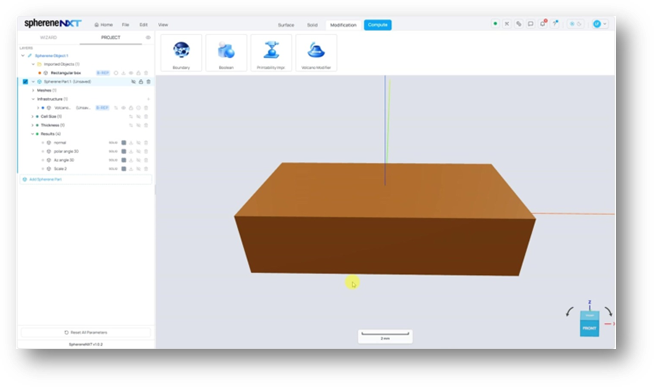
The envelope with a normal result already computed, plus three Volcano Modifier results prepared for comparison: polar angle 30, Az angle 30, and Scale 2.
Opening the Volcano Modifier Dialog
Clicking Volcano Modifier opens a dialog with an Entity Selection field first. Clicking Select and then clicking a mesh in the 3D viewer, here the envelope itself, tells the tool which surface would you like to apply modification to the volcanoes there. Below that sit the three settings covered in this article. Once set up the parameters and applied, it shows up as its own entry under Infrastructure in the Spherene Part tree.
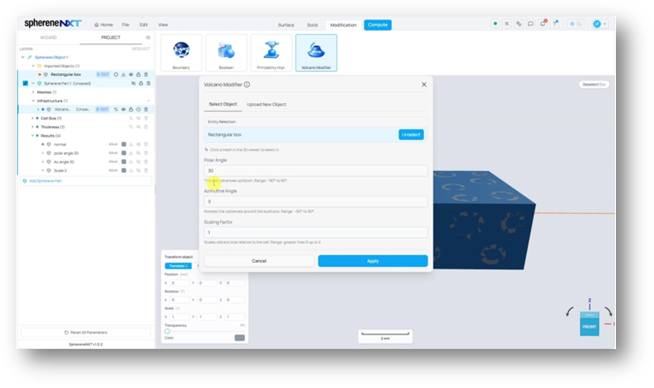
The Volcano Modifier dialog with the envelope selected as the entity and Polar Angle set to 30. The preview on the cube shows the volcano pattern.
Tilting with Polar Angle
Polar Angle tilts the volcanoes up or down, with a range of -90 degrees to 90 degrees. Comparing a plain computed result against the same structure with a Polar Angle of 30 shows the effect clearly: each opening leans over rather than sitting straight up.
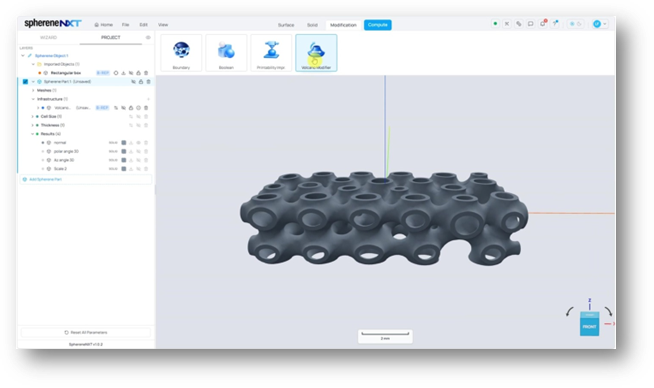
A plain computed result, before any Volcano Modifier settings are applied.
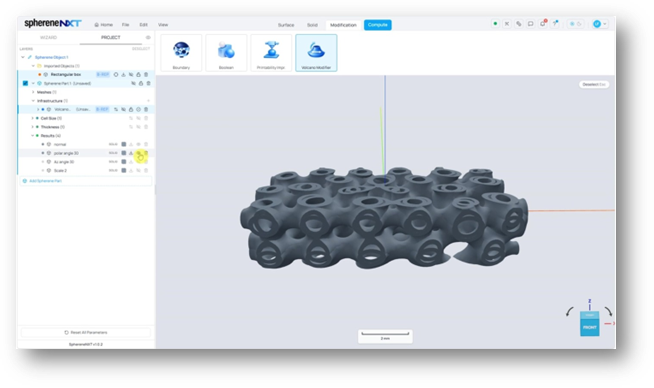
The same structure with Polar Angle set to 30: the volcanoes lean instead of standing straight.
Tip: A moderate value such as 30 degrees is usually enough to see the tilt clearly while keeping the underlying lattice recognizable. Pushing toward the extreme ends of the range makes the effect much harder to control.
Rotating with Azimuthal Angle
Azimuthal Angle is a similar idea, except it rotates the volcanoes around the build axis instead of tilting them, also across a range of -90 degrees to 90 degrees. Reopening Volcano Modifier, resetting Polar Angle back to 0, reselecting the entity, and setting Azimuthal Angle to 30 instead produces a result where the openings rotate in place rather than leaning.
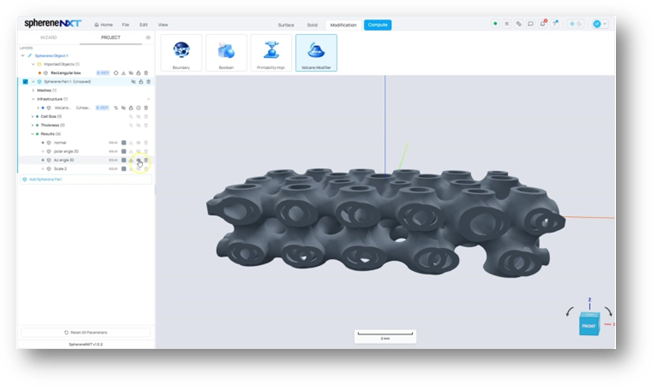
The same structure with Azimuthal Angle set to 30: the volcanoes rotate around the build axis instead of tilting.
Resizing with Scaling Factor
Scaling Factor changes the size of each volcano relative to its cell, with a range greater than 0 and up to 2. Values under 1 shrink the feature, while values from 1 up to 2 make it bigger. Enlarge this factor will push the volcano surfaces closer to the envelope surface. Even with the entity already used earlier in the session, it still needs to be reselected in the dialog before Apply becomes meaningful, since each new set of settings starts from a fresh selection.
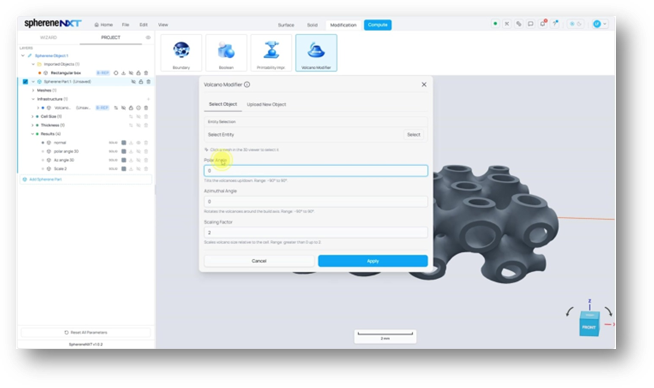
Scaling Factor set to 2, with Polar Angle and Azimuthal Angle both back at 0. The entity still needs to be reselected before applying.
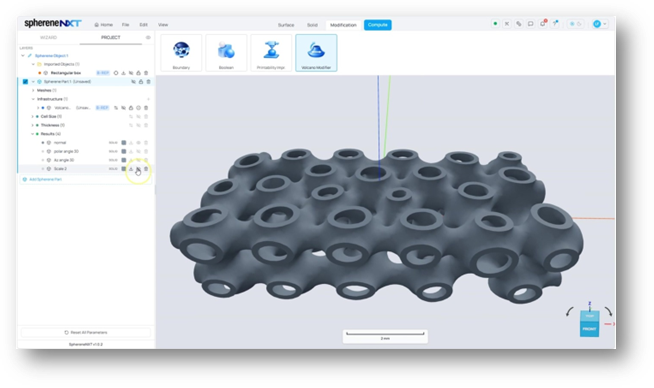
The result with Scaling Factor set to 2: the volcano openings are noticeably bigger relative to the surrounding cells.
Tip: A Scaling Factor pushed toward the top of its range, like the value of 2 used here, is a good way to see the effect clearly while testing.
|
Step |
What It Does |
Where to Find It |
|
Open Volcano Modifier |
Opens the dialog for adding volcano features |
Modification tab > Volcano Modifier |
|
Select the entity |
Tells the tool which surface to add volcanoes to |
Entity Selection > Select |
|
Set Polar Angle |
Tilts the volcanoes up or down (-90 to 90 degrees) |
Volcano Modifier dialog |
|
Set Azimuthal Angle |
Rotates the volcanoes around the build axis (-90 to 90 degrees) |
Volcano Modifier dialog |
|
Set Scaling Factor |
Resizes the volcanoes relative to the cell (0 to 2) |
Volcano Modifier dialog |