
Running a Compute
By the time you reach Compute, the groundwork is already in place. sphereneNXT isn't a CAD tool, so the part you're filling comes in as a CAD file that you import and assign as the envelope, and your cell size and thickness are set before anything gets calculated. Compute takes that setup and generates the actual structure inside the envelope.
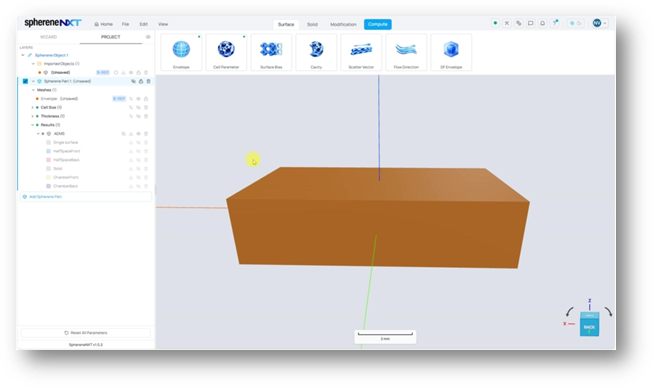
A rectangular box imported and assigned as the envelope, with cell size and thickness already set. Everything's ready for a compute.
Compute lives in the top bar, over on the right. Clicking it opens the dialog where you name the output, adjust a few calculation settings, and choose which result types to generate. When the settings look right, Apply kicks off the calculation.
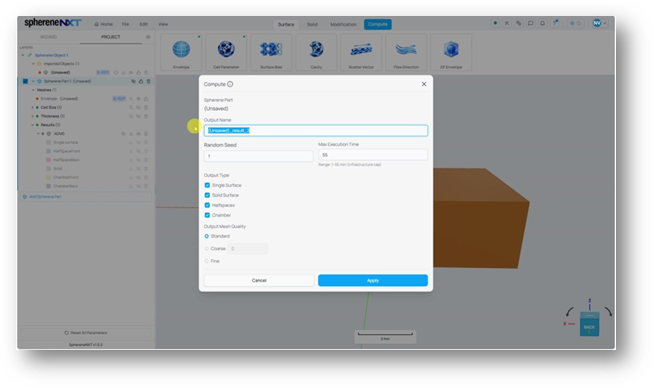
The Compute dialog, with the output name selected and all four output types checked.
Output Name
Output Name is whatever you want to call this result. It's easy to change, and it's worth giving it something meaningful, since the name you set here is what labels the result group under Results in the layers panel. In this example the output is named ADMS, so that's the group name you'll see once the calculation finishes.
Random Seed
ADMS and Flow ADMS are stochastic, meaning the same setup might give different resultant structures with different random seeds. By controlling the random seed, you can ensure the generated structure is the same or different from the previous compute with the same setup. If you're happy with your parameters, but a structure has a few local problem spots, changing the random seed and recomputing gives you a slightly different design each time without touching anything else.
Tip: Keep your parameters fixed and just cycle the random seed when you want to clear up small local issues. Each value produces a slightly different layout, so it's a quick way to find a cleaner result without reworking the setup.
Maximum Execution Time
Maximum execution time is a safety limit. If the calculation runs longer than the value set here, it pauses and aborts rather than running indefinitely. The field shows a range of 1 to 55 minutes. If a job longer than that is needed, a high-performance computing option that grants you faster computation will show up.
Tip: If a compute keeps hitting the time limit, that's usually a sign the settings are heavier than the part needs. Coarsening the mesh quality or easing up on cell size is a better fix than trying to buy more time.
Output Type
Output Type decides which result meshes get generated. There are four options, and you can check as many as you like: Single Surface, Solid Surface, Halfspaces, and Chamber. Each one produces its own entry under Results, and the next section shows what each looks like. Generating only the types you actually need keeps the results tidy and the calculation lighter.
Output Mesh Quality
Output Mesh Quality sets how finely the result is meshed. Standard is a good choice for the first few iterations while you're still dialling things in. Once you're happy with the result, switch to Fine for a smoother mesh, or drop to Coarse if you need a lighter file. Finer meshes take longer to compute, which is where the execution time limit comes back into play.
Understanding the Output Types
Each output type you checked in the dialog shows up as its own result under the Results group in the layers panel. They all come from the same computed structure, but they represent it in different ways, and the one you want depends entirely on what you're building.
Single Surface
Single Surface is the raw infill geometry with no thickness at all.
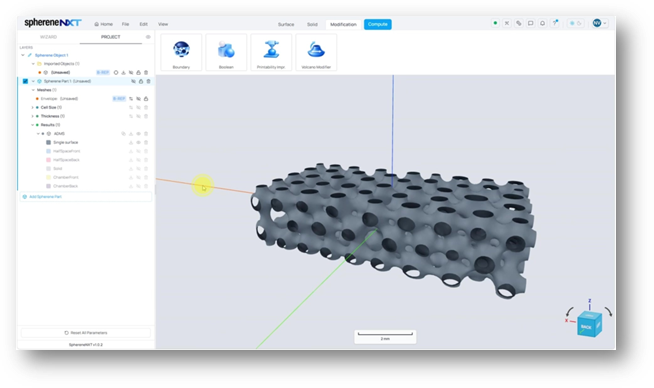
The Single Surface result: just the geometry, with no thickness applied.
Solid Surface
Solid Surface takes that single surface and gives it thickness. The wall is built out to both sides equally, so the single surface ends up running right through the middle of the thickened material. The amount of thickness comes from the Thickness value you set earlier. The defined boundaries and Booleans will also been shown in solid surface.
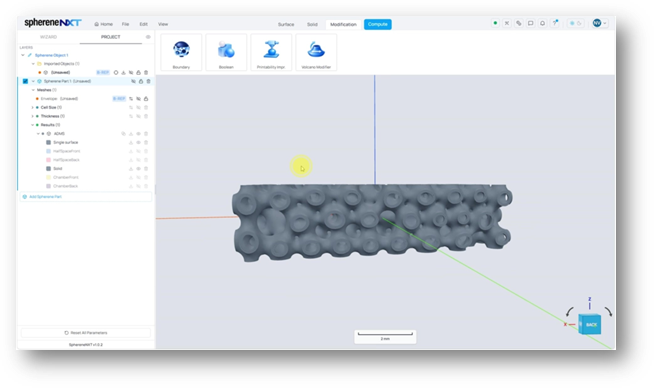
The Solid result: the single surface thickened evenly to both sides.
Halfspaces: Front and Back
The single surface splits the envelope into two separate regions (blue and red region below): HalfSpaceFront and HalfSpaceBack. It can be useful when you are interested in filled metamaterials inside of the shell ones.
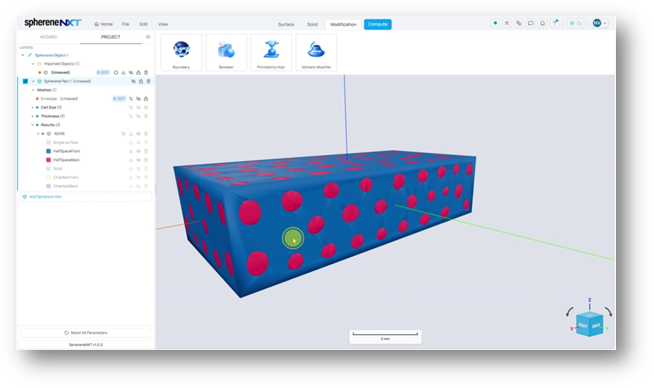
HalfSpaceFront (blue) and HalfSpaceBack (red) shown together. Between them they fill the entire envelope.
Chamber: Front and Back
Chamber works on the same idea of two separate regions, but it's derived from the solid part rather than the single surface. That difference matters: because the solid wall is included, ChamberFront and ChamberBack are separated by a real physical wall instead of meeting at a zero-thickness surface. They can be directly input geometries of fluid chambers in CFD simulation.
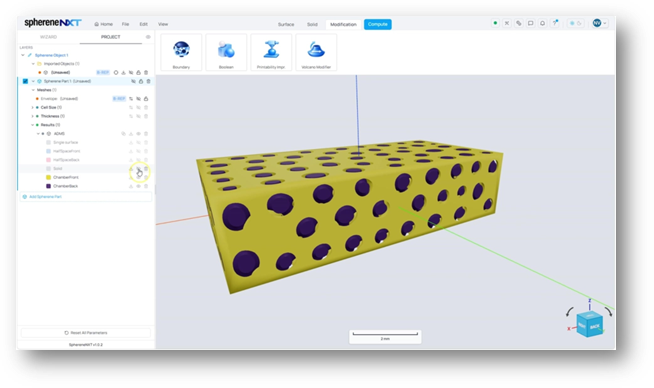
ChamberFront (yellow) and ChamberBack (purple), separated by the solid wall between them.
Tip: Reach for Chamber Front and Back when the two sides need to stay physically sealed off from each other, such as heat exchangers or other fluid applications where you need a real wall between the two channels. Halfspaces suitcases where that separating wall isn't required or if only one chamber is needed.
Quick Reference
|
Step |
What It Does |
Where to Find It |
|
Set Output Name |
Names the result group shown under Results |
Compute dialog |
|
Adjust Random Seed |
Changes how seeds spread, giving a different layout |
Compute dialog |
|
Set Max Execution Time |
Aborts the calculation past the limit (1 to 55 min) |
Compute dialog |
|
Choose Output Type |
Picks which result meshes are generated |
Compute dialog |
|
Set Output Mesh Quality |
Controls mesh fineness (Standard, Coarse, Fine) |
Compute dialog |
|
Click Apply |
Runs the calculation and creates the results |
Compute dialog |