
What the Boolean Tool Does
Boolean is the way to add or remove external objects from your envelope. You'll find it in the Modification tab, next to Boundary.
Here, the envelope is a simple box, with two spheres added purely to show how the function works, one near the top left and one near the bottom right. Cell parameters and thickness were already set up beforehand, just like with every other sphereneNXT feature. Remember that sphereneNXT isn't a CAD tool, so both the envelope and any external object you want to add or subtract need to be imported first.
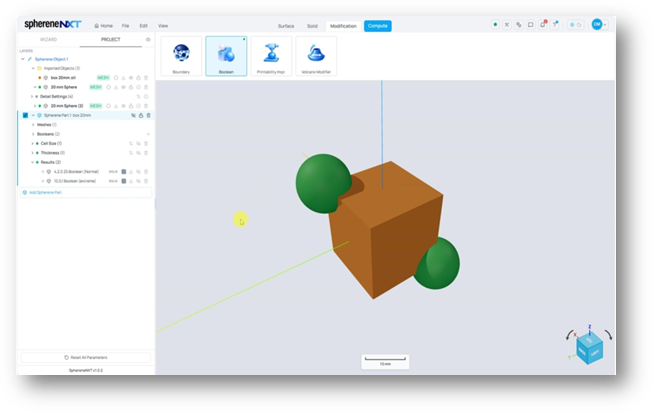
The box envelope with two spheres added, one top left and one bottom right, ready for the Boolean function.
Opening the Define Boolean Dialog
Clicking Boolean opens the Define Boolean dialog. Click Add Object for anything you've already imported or Upload New Object if you need to bring something new into the workspace. Once an object is added, you'll see a Union or Subtraction choice for it, along with Target Thickness, Blend Distance, and Blend Exponent fields.
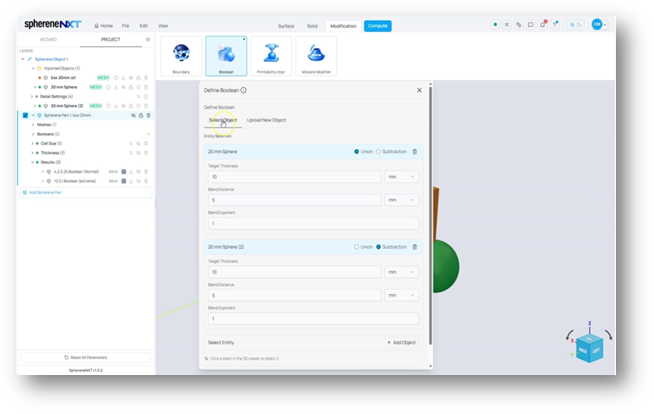
Each object gets its own Union or Subtraction setting, plus Target Thickness, Blend Distance, and Blend Exponent.
Union connects the external object into your structure. Subtraction removes that region from your structure instead. In this example, one sphere was set to Union and the other to Subtraction, so both behaviors show upside by side in the same result.
Setting the Blend Parameters
Target Thickness, Blend Distance, and Blend Exponent together define what you might call the boolean radius, how far the connection between your structure and the external object reaches, and how smoothly it blends. Getting this right is what makes the difference between a natural-looking connection and a distorted one.
Target Thickness is the thickness of the bridge structure that blends the Boolean object surface and inner infill structure on the boundary surface.
Blend Distance sets how far that blending spreads within the infill structure, in other words, how much depth in the infill structure will be affected for this blending with the Boolean object surface.
Blend Exponent shapes the curve of the blending region. It controls how gradually or sharply the thickness tapers off across the Blend Distance. Input a value between 0.125-1.0 can change the blending from a very tight curve into a 45° curve.
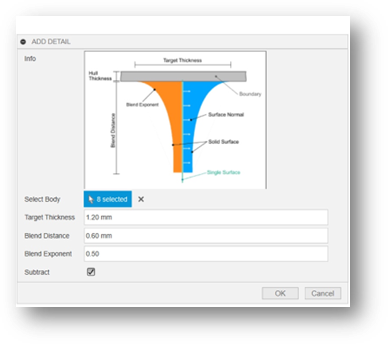
Target Thickness, Blend Distance, and Blend Exponent were set to 4 mm, 2 mm, and 0.25 for both spheres here.
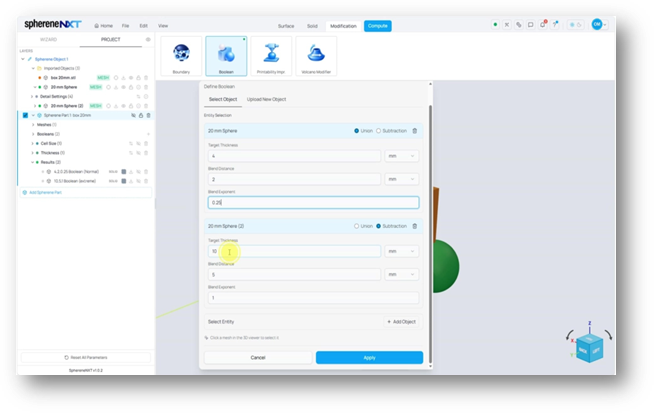
Target Thickness, Blend Distance, and Blend Exponent set to 4 mm, 2 mm, and 0.25 for the first sphere.
Tip: Choose these values too small and the engine may not be able to resolve the geometry at all, which shows up as a computation error. Choose them too big and you risk distorting or over-carving your structure. The right setting sits in the balance between the two.
A Balanced Result
Applying and computing with those settings produced a result named 4,2,0.25 Boolean (Normal) in the Results list.
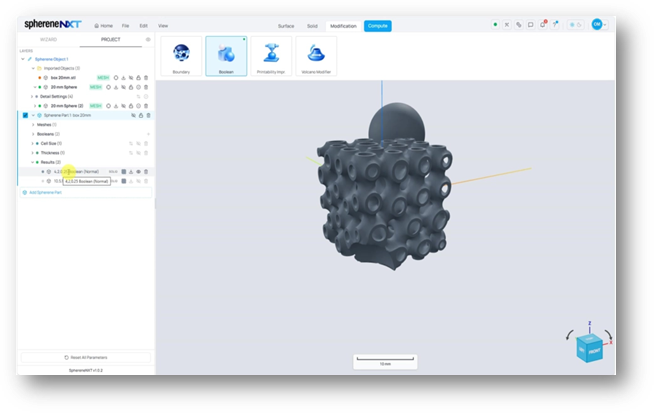
4,2,0.25 Boolean (Normal): the union sphere blends smoothly into the lattice, and the subtraction sphere carves out a clean region.
Zooming into the union side, the sphere is fully connected to the structure, with a smooth transition rather than a hard seam.
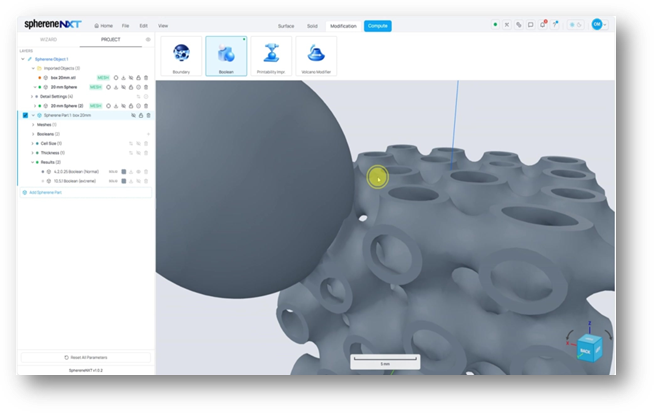
On the Union side, the sphere is fully connected to the lattice.
On the Subtraction side, that same sphere shape has been cleanly removed from the structure instead, leaving a smooth carved-out cavity.
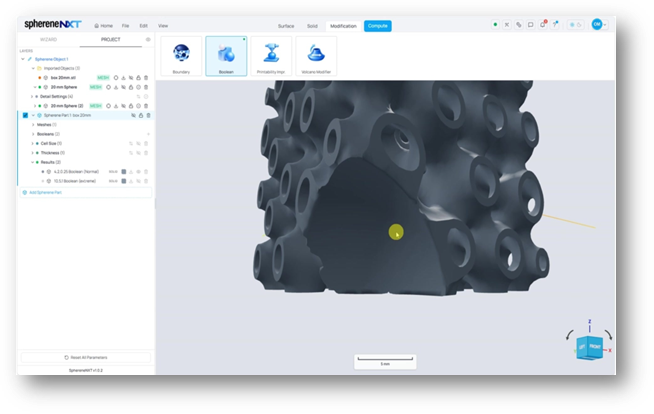
On the Subtraction side, the sphere's shape has been removed from the structure.
Going Too Extreme
To show what happens at the other end of the scale, the same two objects were recomputed with Target Thickness, Blend Distance, and Blend Exponent set to 10 mm, 5 mm, and 1, producing a second result named 10,5,1 Boolean (extreme).
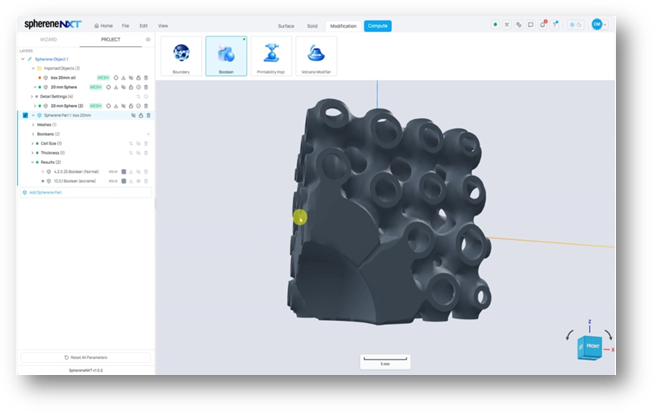
10,5,1 Boolean (extreme): the blending radius is far too large, distorting the structure and over-carving the internal lattice.
With numbers pushed that far, the blending radius is too large. The structure gets stretched and reshaped around the union side, and the subtraction side eats into the internal part of the lattice a lot more than intended. It's a clear example of why the balance between these three settings matters, since going too extreme in either direction works against you, whether that's a computation error from values too small, or a ruined structure from values too big.
Quick Reference
|
Step |
What It Does |
Where to Find It |
|
Add a boolean object |
Selects an existing object, or lets you upload a new one |
Modification tab > Boolean |
|
Add another object |
Assigns multiple Boolean objects at the same time |
+ Add Object |
|
Choose Union |
Fully connects the external object into your structure |
Define Boolean dialog, per object |
|
Choose Subtraction |
Removes that region from your structure |
Define Boolean dialog, per object |
|
Set Target Thickness |
Sets how far the Boolean connection reaches |
Define Boolean dialog |
|
Set Blend Distance |
Sets how far the transition between object and structure spreads |
Define Boolean dialog |
|
Set Blend Exponent |
Shapes the curve of that transition |
Define Boolean dialog |