
Before You Dive In
Every time you log in to sphereneNXT, the Home page is the first thing you see. It's easy to skim past it and go straight to a project, but there's a lot packed into this one screen: a shortcut to start a new design, your recent work, your credit balance, and quick access to help. Knowing what's where can save you a good amount of clicking around later, so let's go through it piece by piece.
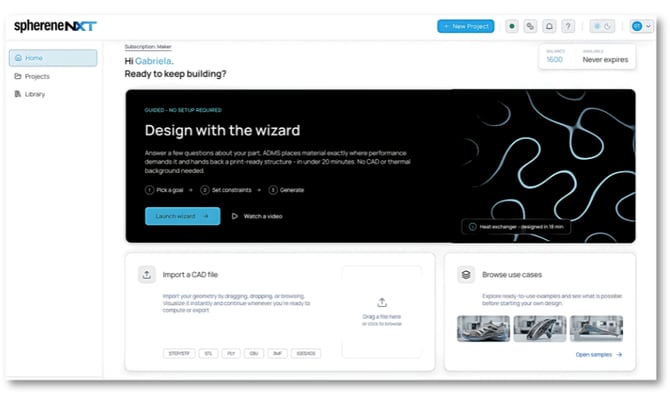
The sphereneNXT Home page
Good to know: Your current subscription plan, for example “Student, Annual”, is always shown just above the greeting message at the top of the page.
Left Navigation Menu
No matter what page you're on in sphereneNXT, this menu stays put on the left. It's your quickest way to jump between the three main areas of the app:
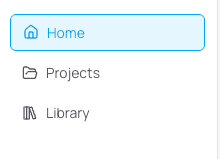
- Home is your dashboard and the best place to kick off a new design.
- Projects holds every project you've created or been given access to.
- Library is your personal storage for CAD files you've imported.
Projects
The Projects tab is where all your work lives. It's especially useful once you're working with a team, since you can share a project with teammates right inside sphereneNXT instead of exporting files and emailing them back and forth.
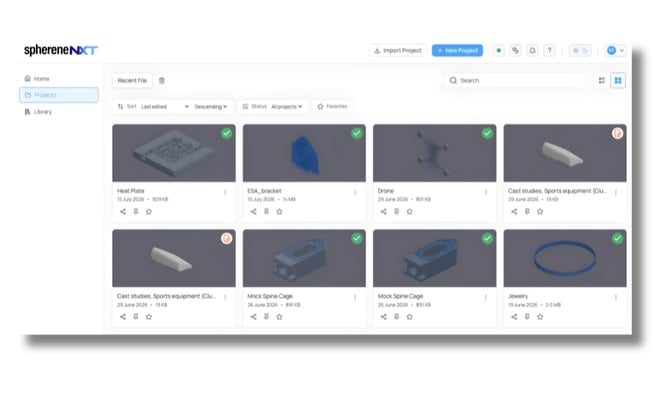 Projects view, with sort, filter, and search options
Status badges: each project thumbnail has a small colored badge in the top-right corner that tells you a lot at a glance.
- Green check means the project finished successfully.
- Orange icon means it's still in progress or didn't complete the way it should have.
Tip: Use the Sort, Status, and Favorites options above the grid to find a file fast, or just search for it by name.
Library
Think of the Library as a shelf for CAD files and designs you already have. You can drop a file here without turning it into a project right away, then come back and open it in sphereneNXT whenever you're ready, even from a different computer, as long as you're signed in.
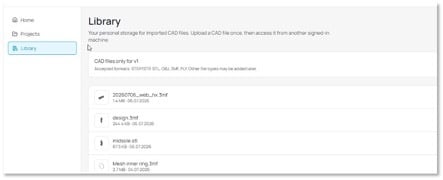
Library, personal storage for imported CAD files
Accepted file formats (v1): STEP/STP, STL, OBJ, 3MF, PLY. More formats may be added later.
Home Page Walkthrough
Back on the Home page, you'll find four main tools front and center, with your recent activity and account details further down.
1. Design with the WizardThe wizard guides you step by step through sphereneNXT's main workflow: pick a goal, set constraints, and generate. One thing worth knowing up front: sphereneNXT isn't a CAD tool, so you'll still need to import a CAD file to use as the envelope before you start, whether you go through the wizard or work through the main functionalities on your own. Once your envelope is in, the wizard walks you through the rest and hands you back a print-ready structure in under 20 minutes.
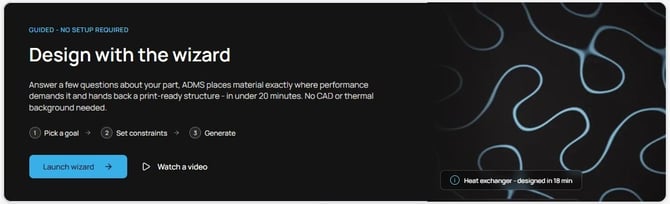
The wizard card: pick a goal, set constraints, generate
- Launch wizard starts the guided workflow.
- Watch a video gives you a short walkthrough if you'd rather see it in action first.
|
Tip: Have your CAD envelope ready before you launch the wizard, it'll ask for it as the first step. We cover the wizard in more detail in its own article, listed under Related Articles below. |
sphereneNXT isn't a CAD tool, so every project starts with a design you bring in from somewhere else. This is where you import it: drag and drop your geometry onto the panel, or click to browse for it. Once it's imported, you can view it right away and pick up whenever you're ready to compute or export.
3. Browse Use CasesNot sure where to start? This is a good place to look. You can explore ready-to-use sample projects and get a feel for what's possible before starting your own design.

Import a CAD file and Browse use cases, side by side on the Home page
Click “Open samples” and you'll land on the full Use Case Samples library, sorted into categories:

Use Case Samples: Lightweighting, Thermal management, Medical implants, Energy absorption, Sport equipment, Architecture and Construction, and Art and jewelry
Pick any category to open sample projects you can explore and learn from.
4. Recent ProjectsScroll down and you'll see the projects you've worked on most recently, marked with the same green and orange badges covered earlier. Click “View all” to see everything, or “Start a new project” to begin from scratch.
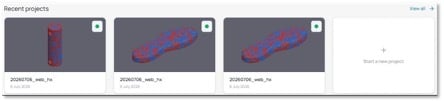
Recent projects, shown with completion status
Credits & Billing
sphereneNXT runs on a credit system, and you don't have to dig for your balance. It's right there in the top-right corner of the Home page.
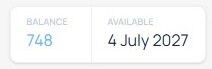
Balance and availability, shown on the Home page
Want more detail? Open the credit usage icon in the top toolbar and you'll get the full picture in the Monthly Credits panel.
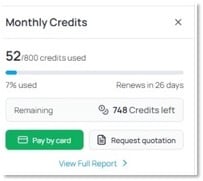
Monthly Credits panel: usage, remaining balance, and purchase options
From here you can:
- View usage to see how many credits you've used this billing period and when your plan renews.
- Pay by card to buy more credits on the spot.
- Request quotation if you're thinking about moving to a Professional, Enterprise, or Faculty plan.
- View Full Report to open the complete Credit Usage Report.
|
Tip: Keep an eye on your renewal date. How unused credits and renewals work depends on your plan. |
Top Toolbar Quick Actions
Beyond New Project and your credit balance, the top-right toolbar holds a few more shortcuts worth knowing. Wherever you are in sphereneNXT, you're one click away from notifications, help, your theme, and your account.

Top toolbar: New Project, status, credit usage, notifications, help, theme toggle, and profile
NotificationsClick the bell icon to check for alerts about your projects and account. Nothing pending? You'll just see “No notifications.”
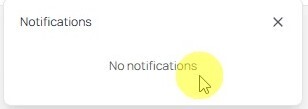
Notifications panel
Help & ArticlesStuck on something? Click the question-mark icon. It opens a searchable panel with What's New, Product Documentation, and Blog Articles, including guides on Mesh Roles, Density & Thickness, Boundary Parameters, Scatter Vectors, and Flow ADMS.
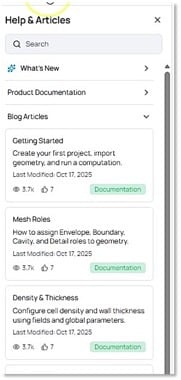
Help & Articles panel
|
Tip: Use the search bar at the top of this panel instead of scrolling. It's usually faster. |
Prefer working in the dark? Click the sun/moon icon to switch between light and dark mode, whichever is easier on your eyes.
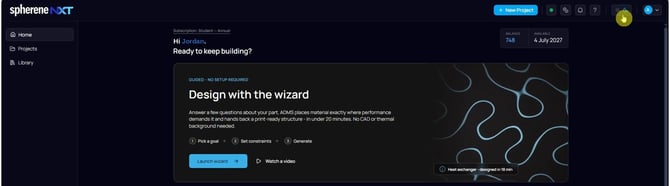
sphereneNXT in dark mode
Profile & Account Menu
Click your avatar in the top-right corner to open your account menu. This is where you manage your profile, your team, your plan, and your platform settings, or log out when you're done for the day.
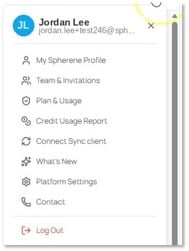
Profile menu
- My Spherene Profile to view and edit your personal profile.
- Team & Invitations to manage teammates and pending invites.
- Plan & Usage to review your current subscription and usage.
- Credit Usage Report to open a detailed report of credit consumption.
- Connect Sync client to link the desktop sync client to your account.
- What's New to catch up on the latest product updates.
- Platform Settings to configure platform-wide preferences.
- Contact to get in touch with the sphereneNXT team.
- Log Out to sign out of your account.
Quick Reference
A cheat sheet for everything covered above, in case you just need a quick reminder later.
|
Home Page Element |
What It Does |
Where To Find It |
|
Wizard |
Guides you step by step through picking a goal, setting constraints, and generating a print-ready structure from your imported CAD envelope. |
Center of the Home page, in the “Design with the wizard” card |
|
Import a CAD file |
Where you bring in your design. sphereneNXT isn't a CAD tool, so this step is required before you start, with or without the wizard. |
Home page, below the wizard card |
|
Browse use cases |
Ready-to-use sample projects across 7 categories, worth a look before you start your own design. |
Home page, via “Open samples” |
|
Recent projects |
Shows your latest projects with a status badge: green for completed, orange for still in progress. |
Bottom of the Home page |
|
Projects tab |
Every project you've created, and a place to share them with teammates directly in sphereneNXT. |
Left navigation menu |
|
Library |
Personal storage for CAD files you've imported, so you can reopen them anytime, from any signed-in device. |
Left navigation menu |
|
Credit balance |
Shows your available credits and renewal date at a glance. |
Top right of the Home page |
|
Monthly Credits panel |
A closer look at your usage, remaining credits, and options to pay by card or request a quotation. |
Top toolbar, credit usage icon |
|
Notifications |
Alerts about your projects and account. |
Top toolbar, bell icon |
|
Help & Articles |
Searchable documentation, What's New, and blog articles. |
Top toolbar, question-mark icon |
|
Theme toggle |
Switches the interface between light and dark mode. |
Top toolbar, sun/moon icon |
|
Profile menu |
Access to your Spherene profile, team, plan and usage, platform settings, and log out. |
Top right avatar |